You can filter calendar views based on Tasks, Milestones, Bugs or Events for any time period. In addition, you can also delete the created project events.
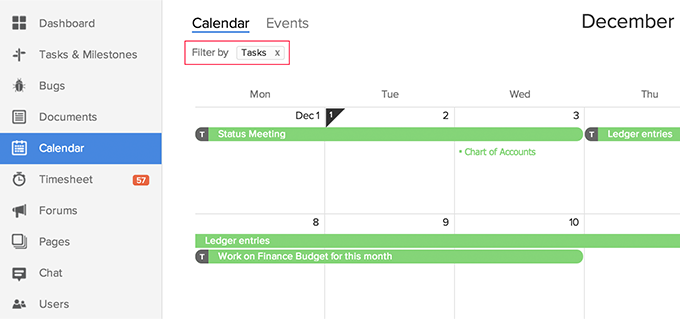
To see all the tasks assigned for a selected month, click Filters at the top right corner, and in TYPE choose Tasks and click Find to filter.
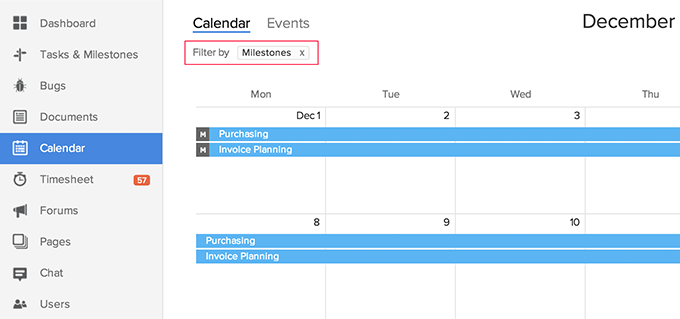
To see all the milestones assigned for a selected month, click Filters at the top right corner, and in TYPE choose Milestones and click Find to filter.
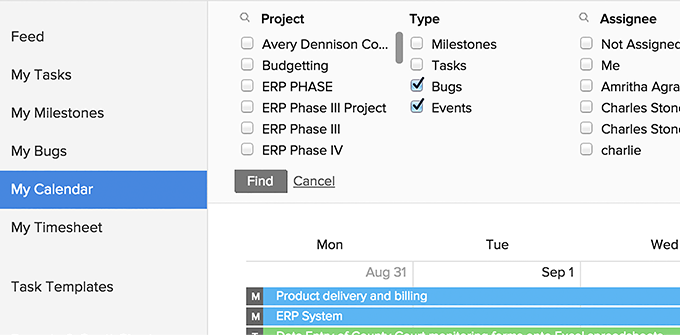
Likewise you can filter and view Bugs and Events for the selected month. To see all the scheduled meetings for a selected month, click Events. You can choose to view project activities and events from My Calendar in the Home page or Calendar within the selected project.
Note:
You can edit or delete the created project events, if required. The Calendar, by default, displays the current month with its scheduled Tasks, Bugs, Events and so on.
Click Events, and click on the selected event to edit or delete the event. The Edit and Delete options are available next to the event title. If you click Attachments, you can associate documents to the event. You can also share comments about the event. If you want to add comments or share documents to a particular event from your personal mail or other account, use the mail address provided inside the event in To add comment(s) to this Event mail to. Learn More about adding comments and attaching files to an event.
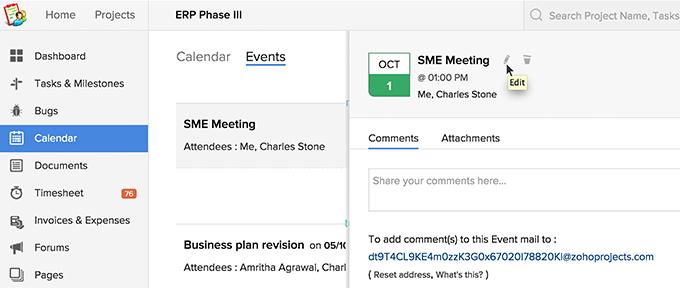
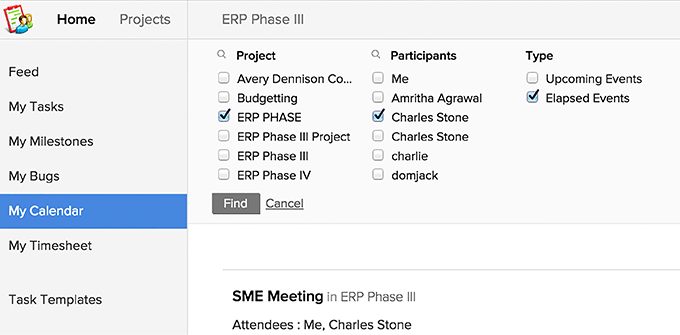
You can also edit and delete events across projects. In My Calendar, click the Filters option at the top right corner and filter events based on Participants and Project. You can choose to edit, delete or associate documents. Likewise, you can also filter and view Upcoming Events or Elapsed Events, based on your requirement.